
Managing displays in TRMS
Displays in TRMS are separate monitors or TVs that you can configure to show content such as leaderboards, events, or images. They are not the bay screens used by players.

After you’ve added displays to TRMS, you can rename them, delete them, or preview how content will appear. See [Adding displays] if you need to set up a new one, and [Adding content to displays] for instructions on assigning content.
Edit a display name
|
|
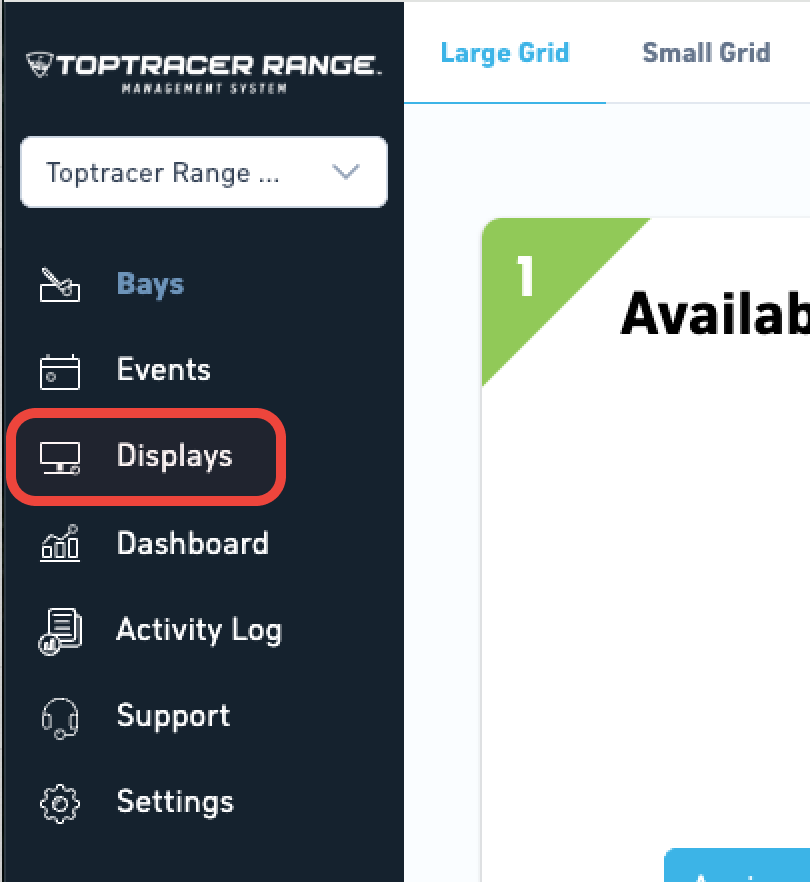
Step 1: Go to Displays. |
|
|
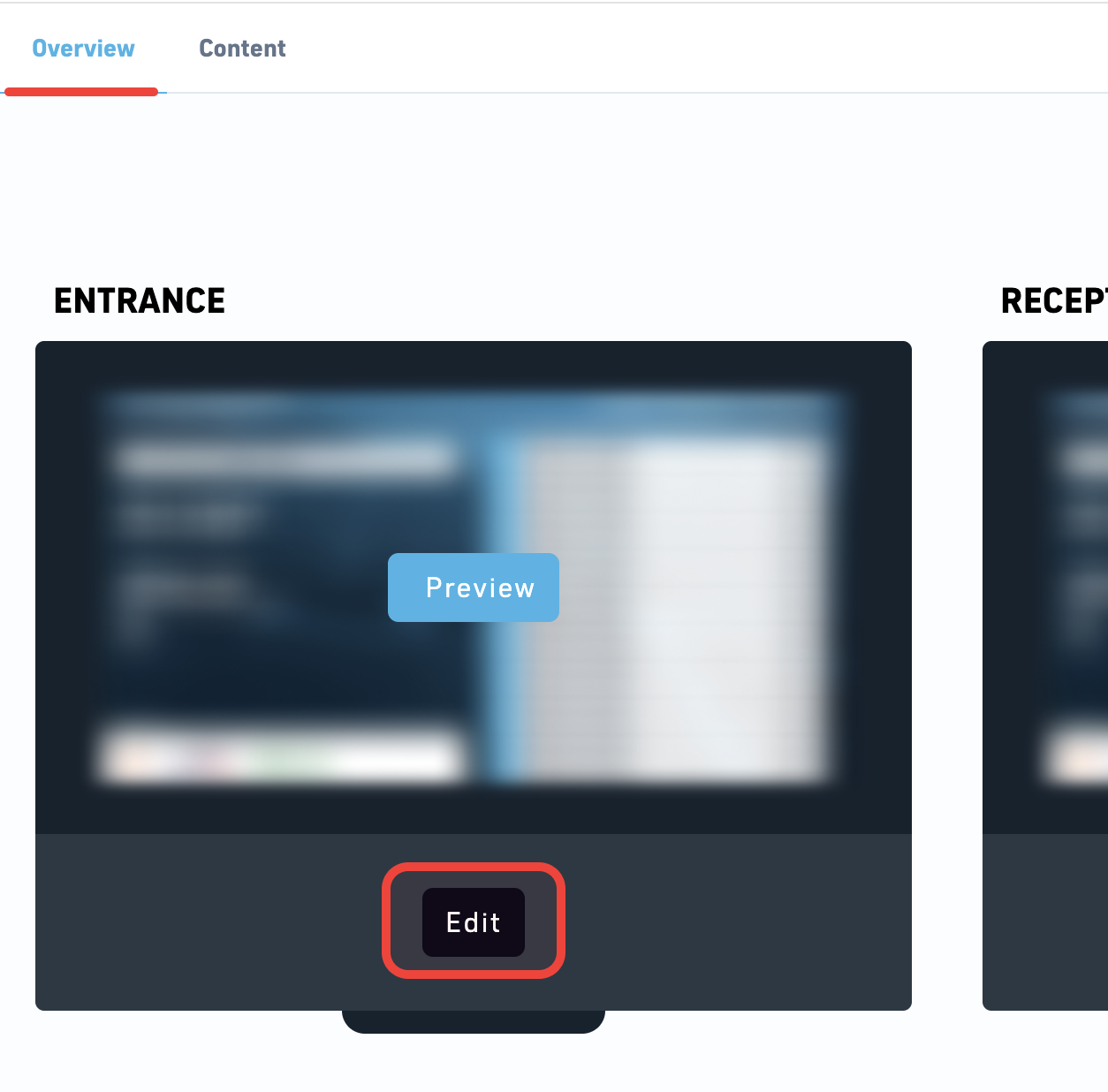
Step 2: In the Overview tab, find the display you want to update and click Edit. |
|
|
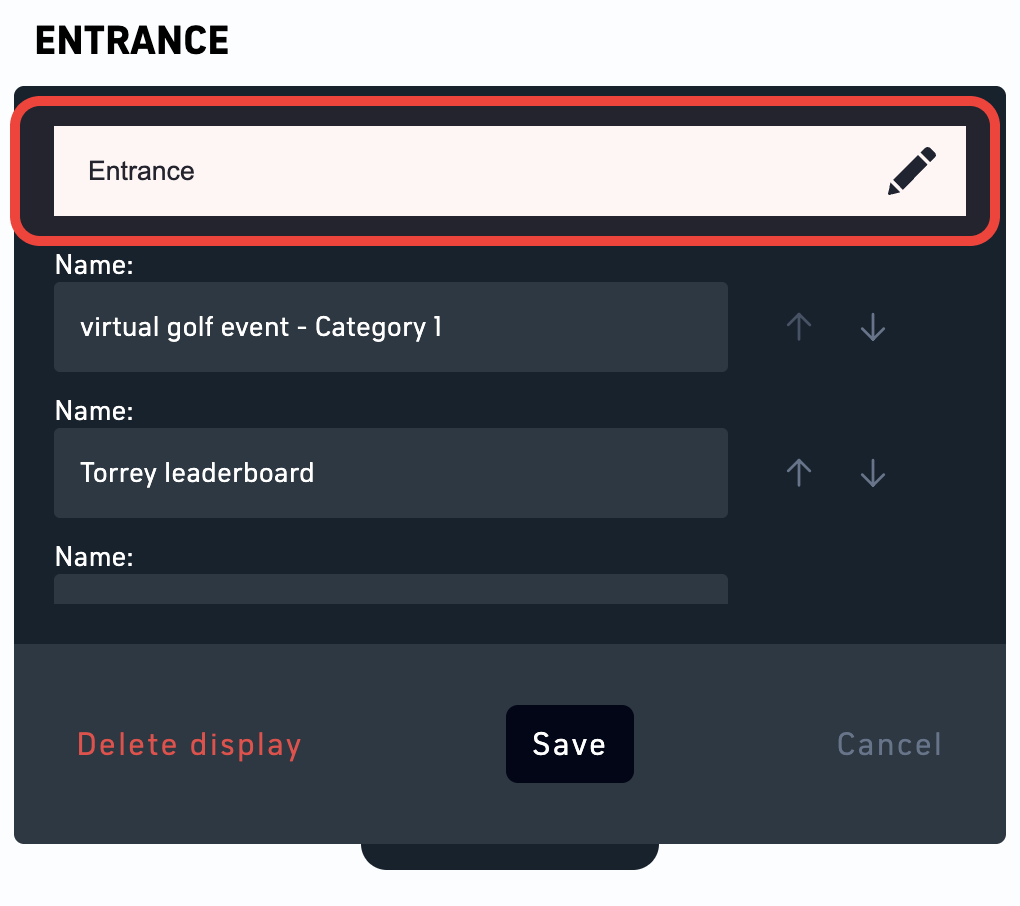
Step 3: Update the display name in the text field. |
|
|
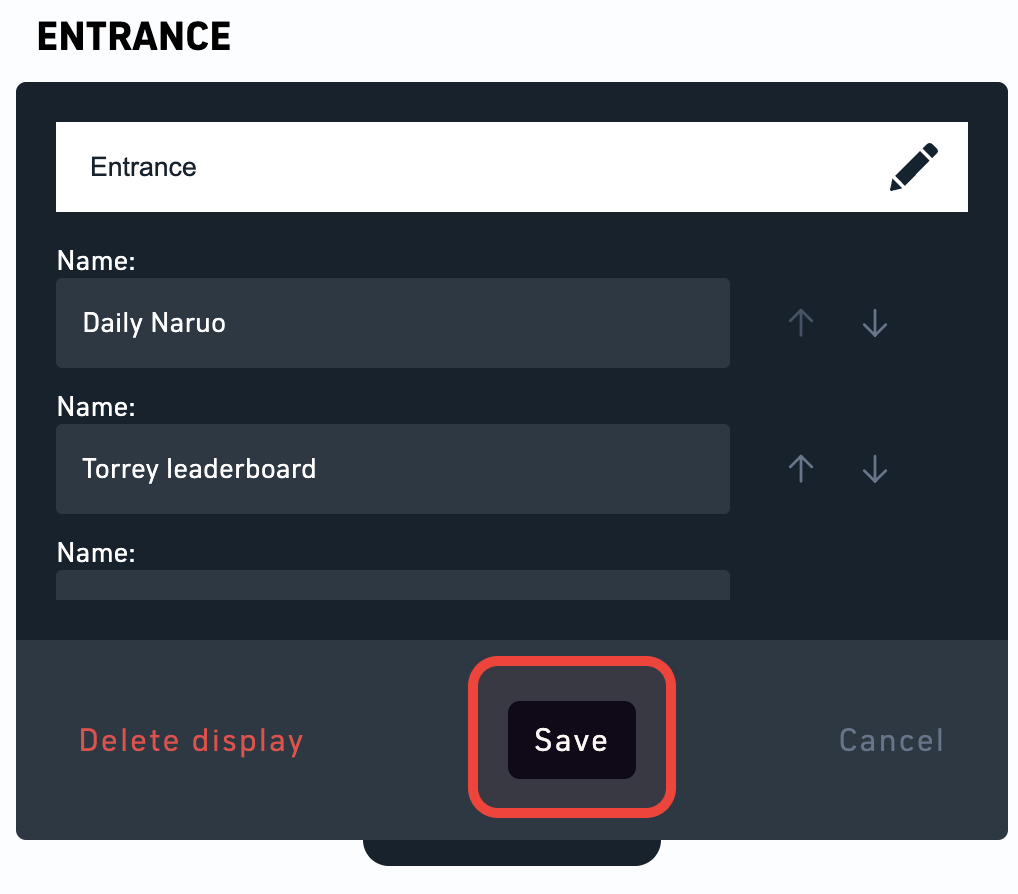
Step 4: Click Save to confirm. |
Delete a display
- Go to the Displays.
- In the Overview tab, find the display you want to update and click Edit.
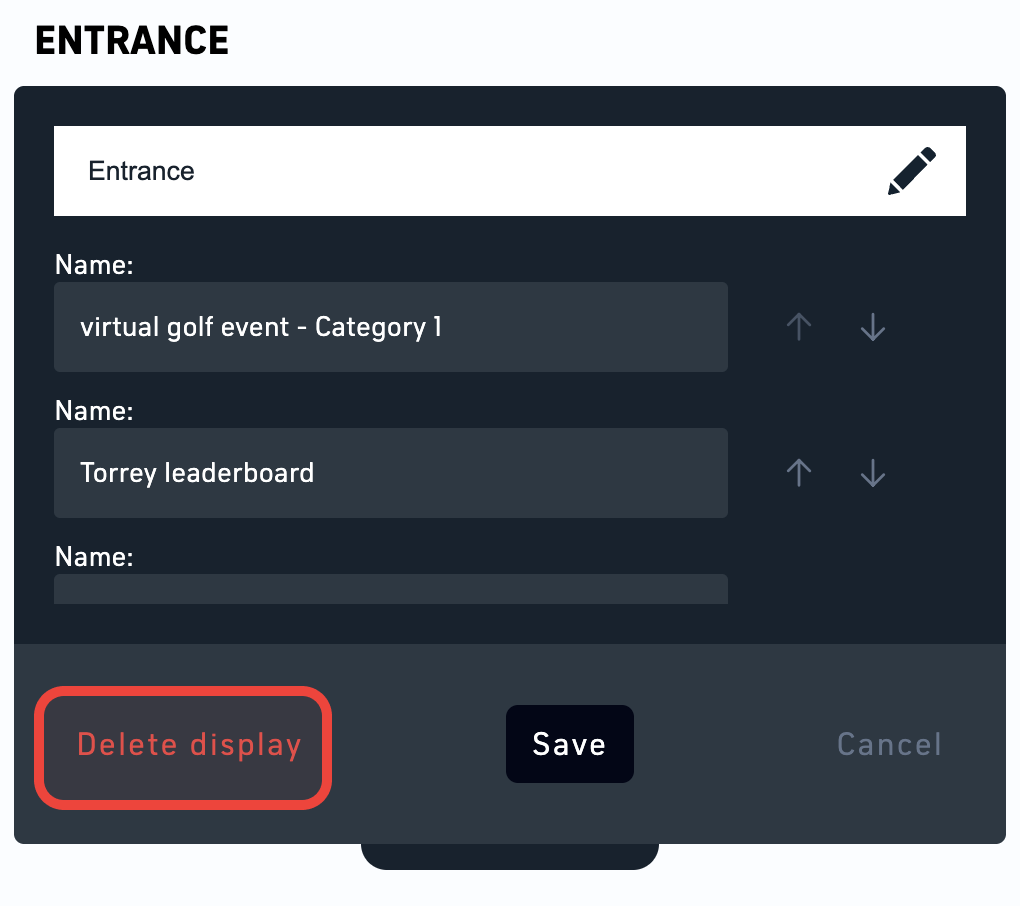
- Click Delete display in the lower-left corner.
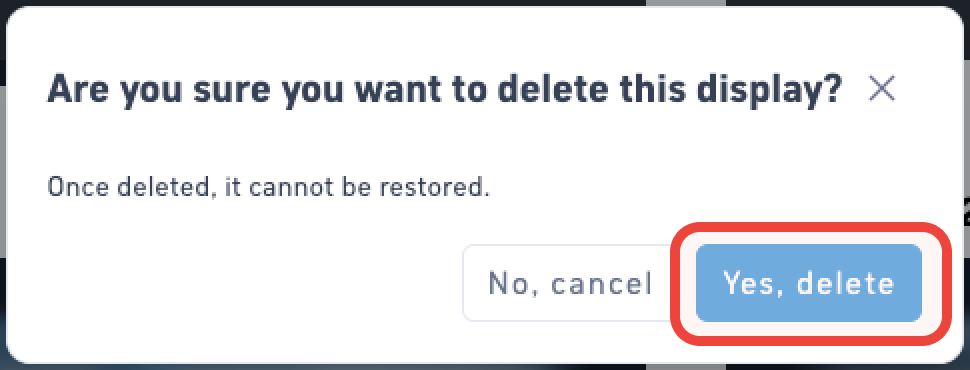
- Confirm the deletion in the dialog.
Once deleted, the display is removed from TRMS and will no longer show any content on the physical display.
|
|
Step 1: Go to the Displays. |
|
|
Step 2: In the Overview tab, find the display you want to update and click Edit. |
|
|
Step 3: Click Delete display in the lower-left corner. |
|
|
Step 4: Confirm the deletion in the dialog. |
|
|
Done! The display is now removed from TRMS and will no longer show any content on the physical display. |
Preview a display
- Go to the Displays.
- In the Overview tab, find the display you want to preview.
- Click Preview.
The preview shows how the current content order and images will look on that display.
Note: The Preview button is only available if content has already been added to the display. To learn how to add content, see [Adding content to displays].