
Email notifications for Over Net shots
If your range has the Over Net feature enabled, TRMS can send you an email notification whenever a guest hits a shot over the net. This way, staff can stay informed even when TRMS is not open in a browser.
How to enable email notifications
|
|
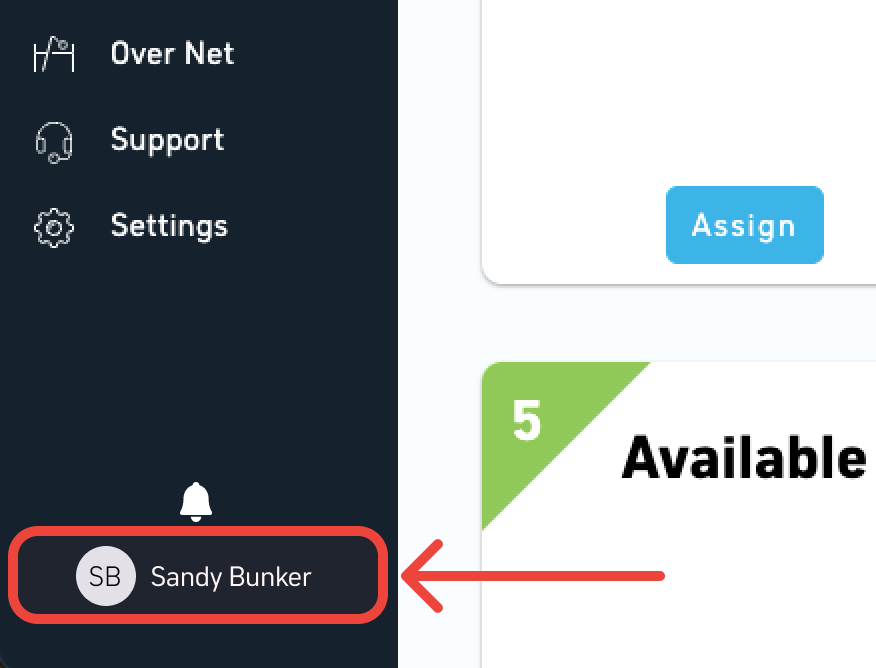
Step 1: In TRMS, click your name in the bottom of the left menu. |
|
|
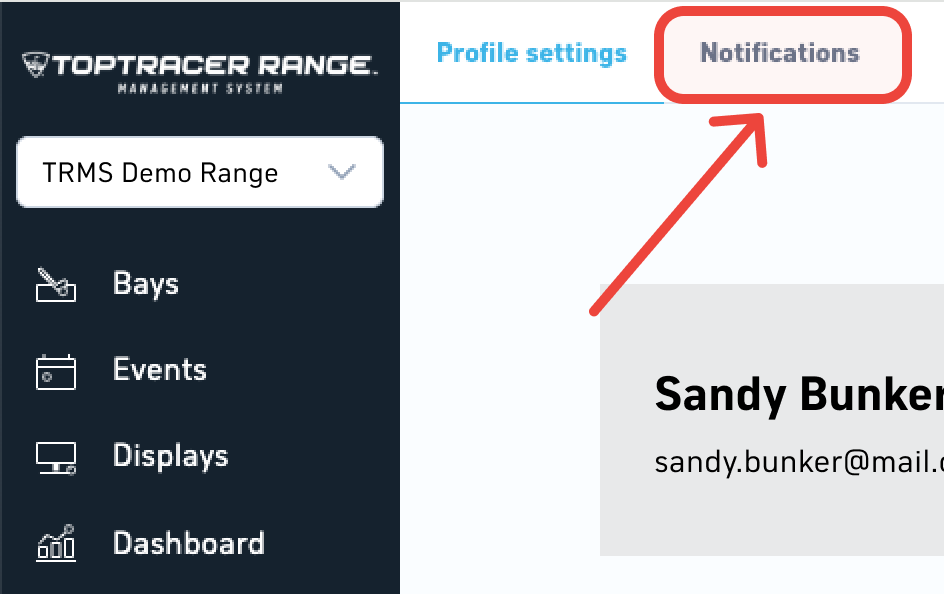
Step 2: Select Notifications at the top of the page. |
|
|
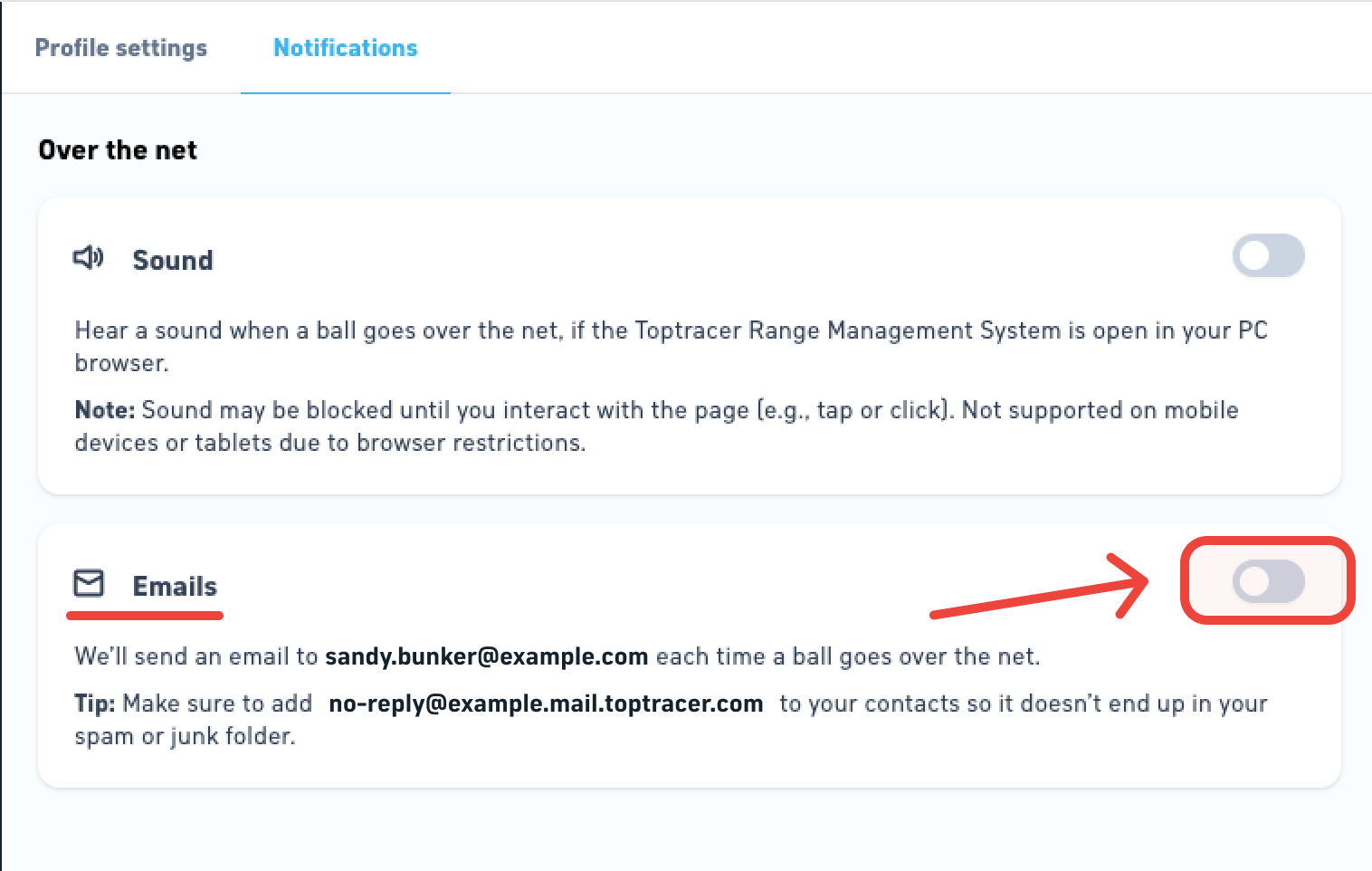
Step 3: Toggle Email for Over the net notifications on. |
|
|
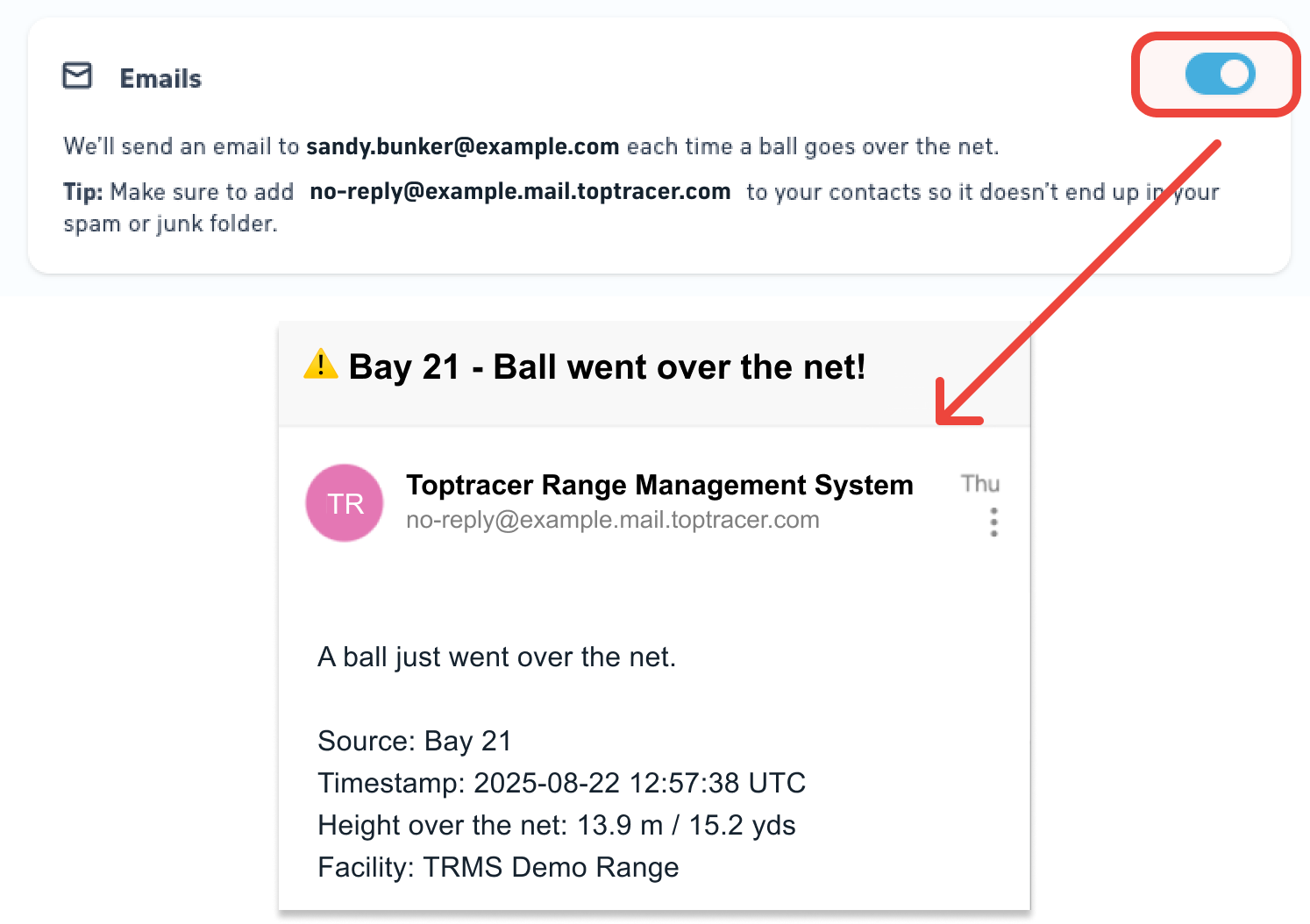
Once enabled, TRMS will send an email to the logged-in user each time an Over Net shot is detected. |
Tip
To prevent Over Net emails from ending up in your spam or junk folder, add the TRMS no-reply address to your contacts.
Shared email addresses
- If multiple staff members share the same email address, all Over Net emails will go to that shared inbox.
- To give each staff member their own notifications, add them as separate users in TRMS under Settings → User Management (admin role required). See the [How to add users article] for more information.
- Each user will then need to log in and enable email notifications in their own profile.
Emails across ranges
- You will receive emails from all ranges you have access to that have the Over Net feature turned on.
- If you have access to ranges in multiple regions (NAMR, EMEA, APAC), you need to log in to each region separately and turn on email notifications in your profile.