
Sound notifications for Over Net shots
Apply a sound to the notifications you receive in TRMS whenever a ball goes over the net.
This feature works only on computers with TRMS open in a browser. It is not supported on mobile devices or tablets due to browser restrictions.
How to enable sound notifications
|
|
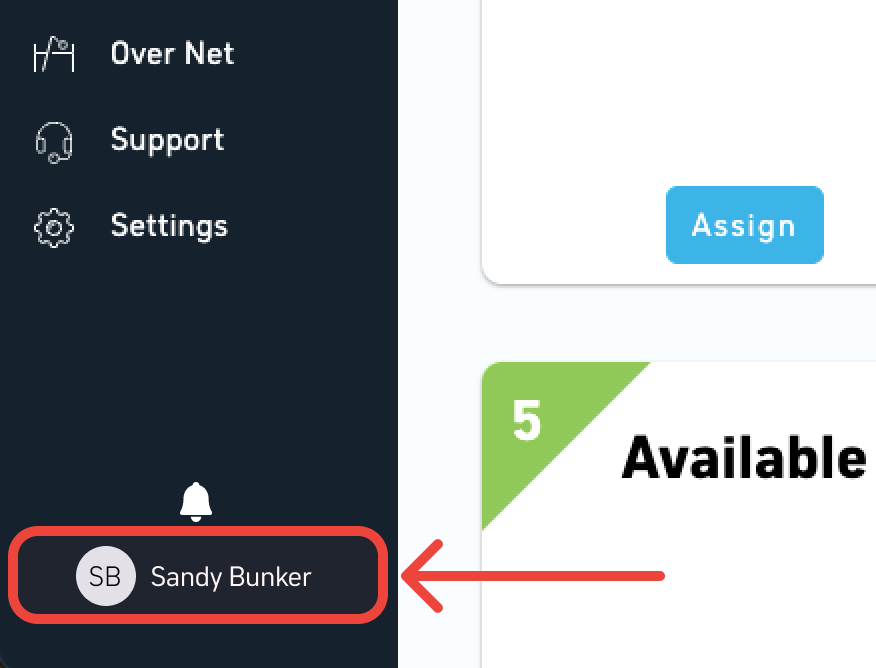
Step 1: In TRMS, click your name at the bottom of the left menu. |
|
|
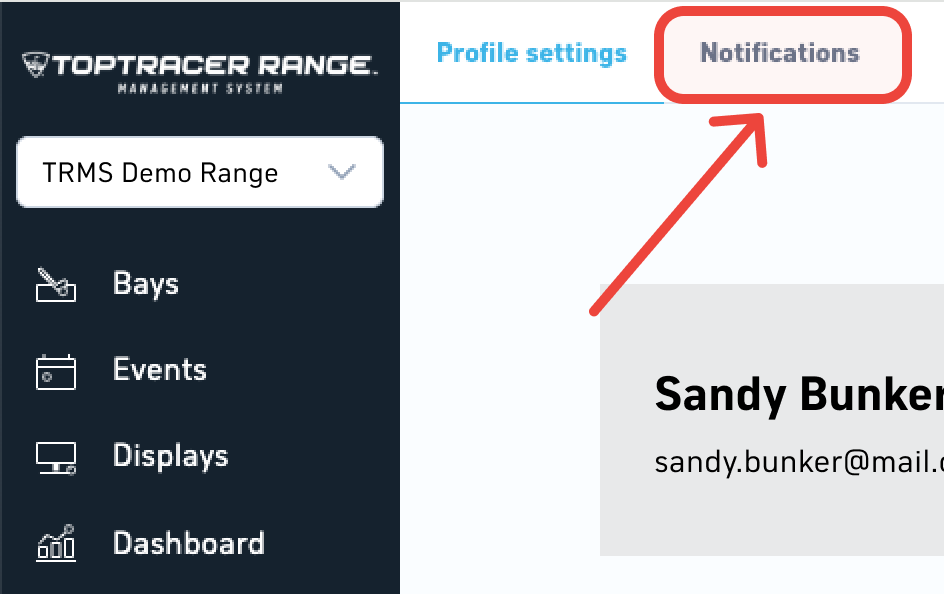
Step 2: Select Notifications at the top of the page. |
|
|
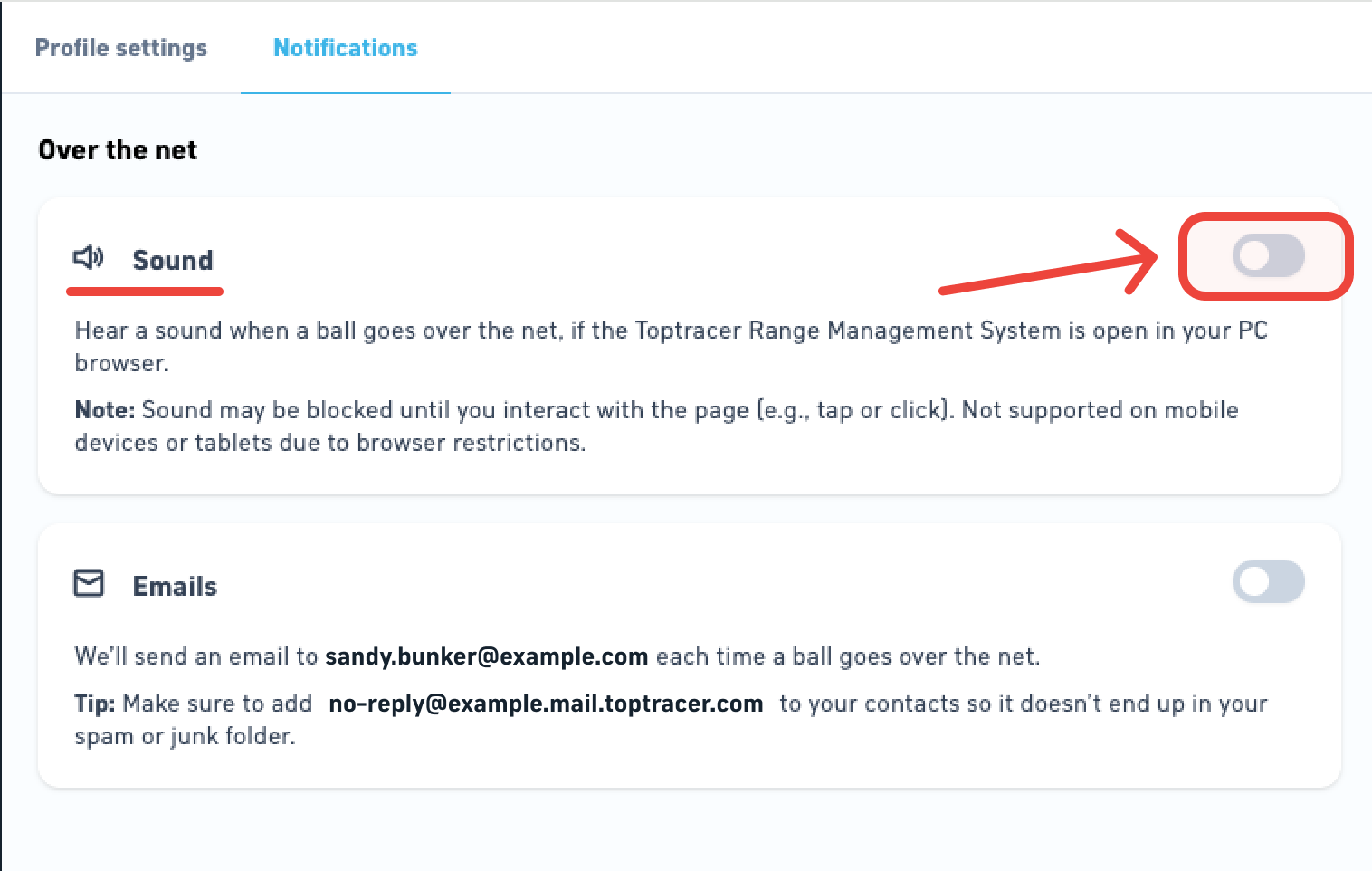
Step 3: Toggle Sound for Over the net notifications on. |
|
|
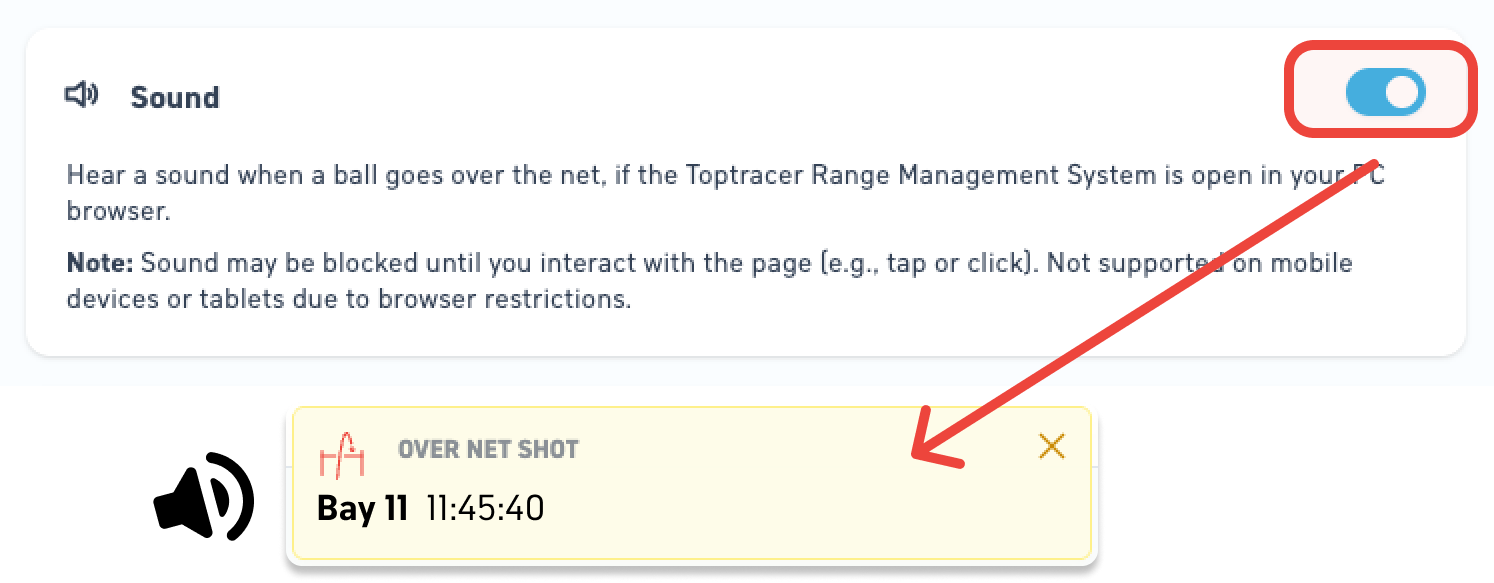
Once enabled, a sound will play each time an Over Net shot is detected, as long as TRMS is open in your browser on your PC. |
Why you may not hear sound
- TRMS is closed — sound only plays while TRMS is open in your browser.
- Your computer is muted or volume is set too low.
- Browser restrictions — most browsers block sound until you interact with the page.
- You’re on a mobile device or tablet, which does not support sound notifications.
Troubleshooting sound notifications
If you’ve turned sound on but don’t hear anything:
- Open another browser tab and test sound on a site like YouTube or Spotify Web to confirm your speakers are working.
- Check your computer’s volume and mute settings.
- Refresh TRMS in your browser and make sure you’ve clicked or interacted with the page.
- Confirm the setting is enabled under Notifications in TRMS.
If sound still doesn’t play, try a different browser (such as Chrome, Edge, or Firefox) to rule out browser-specific restrictions.
Contacting Support
If the issue persists, go to the Support page in TRMS to contact Toptracer Support. When submitting your request, include:
- The device you are using (e.g., Windows PC, Mac).
- The browser where sound notifications did not work.
- The troubleshooting steps you already tried.
Providing this information helps Support resolve your issue more quickly.