
LED Status Guide - Camera
Each Toptracer system uses two cameras connected to a server.
Camera models may vary by installation.
Some camera models include a visible LED status light. Others do not.
If you do not see a light on the camera, this may be normal for your installation.
Step 1 – Check for a visible LED
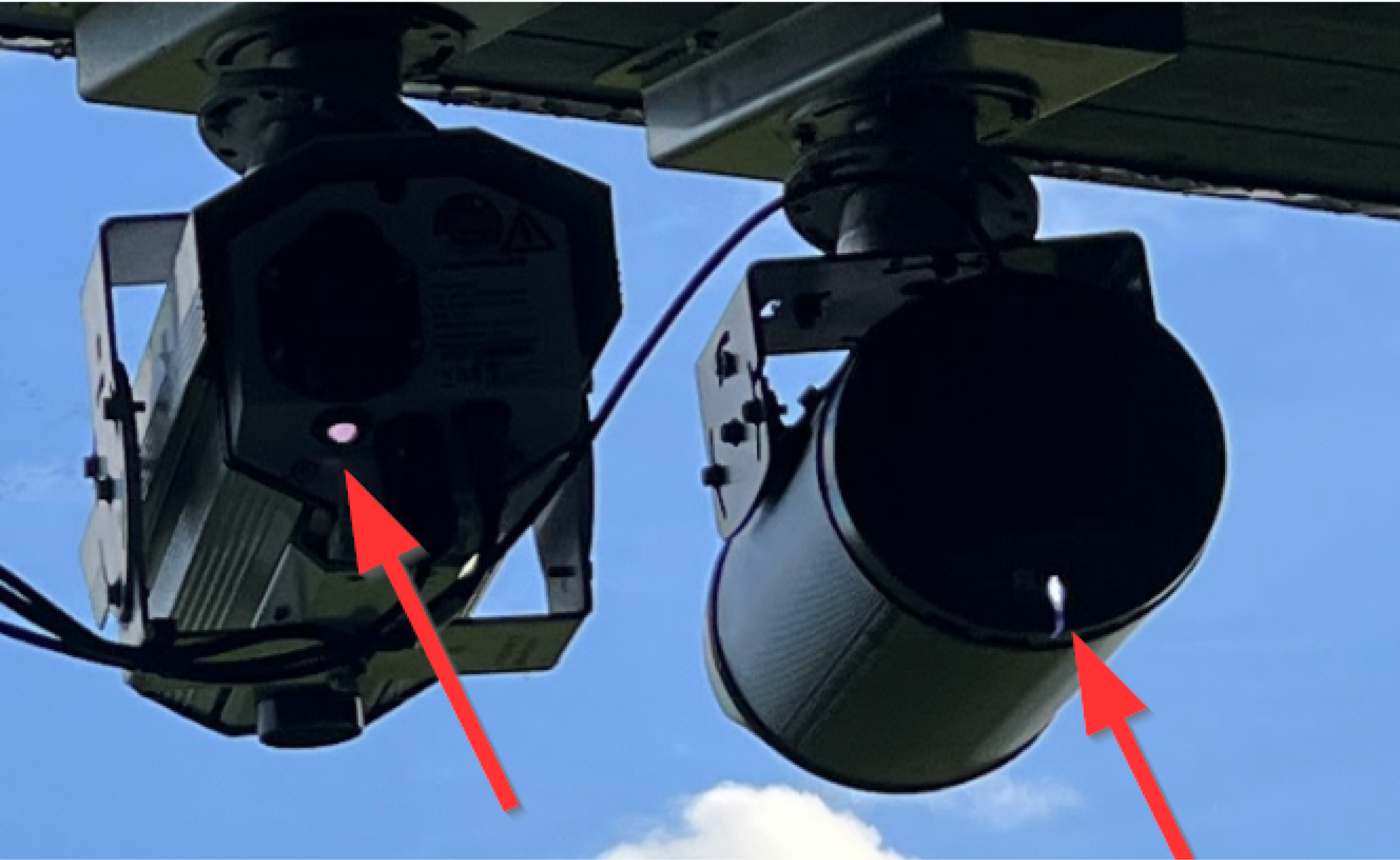
Look for a small light on the camera housing.
If your camera does not have a visible LED:
- Confirm cables are securely connected
- If the system is not working, contact Support
If your camera has an LED, continue below.
🟢 Solid green
The camera is powered on and working as expected.
- Green means the camera is actively streaming
No action needed.
⚪️ Solid white
The camera was just restarted/powered on and is in the process of booting.
- White means the camera is idle
No action needed if the LED turns green within a few minutes, if not please contact Support.
🔵 Flashing blue
The camera is booting.
- This should only last a short time
- The light should change to white or green
If the light keeps blinking → Contact Support.
🟡 Yellow, 🟣 Purple, or flashing yellow/purple
The camera has a network connection issue.
Check:
- The network cable is firmly connected to the camera
- The connection box or outlet near the camera is secure
- The cable is not damaged
Wait 1–2 minutes after reseating the cable.
If the light does not change → Contact Support.
🔴 Red or flashing red
The camera has a hardware or internal issue.
If the issue continues → Contact Support.
🔴 Red and white flashing
The camera may be overheating and is triggered when the temperature inside the unit gets too high.
- Allow the camera to cool down
- Ensure the environment is not excessively hot
If the issue continues → Contact Support.
⚫️ No light (on cameras that normally have one)
If the camera usually has a visible LED but no light is showing:
Check:
- The network cable is firmly connected
- The connected server or switch has power
- PoE is enabled
If the light remains off → Contact Support.
When contacting Support
Please include:
- A clear photo of the camera
- The LED color/state